An AI Guide for 1700 Operating Systems
How AI Watcher and virtualosmuseum.org together remove the two barriers between you and the history of computing.
There are two reasons people don’t get hands-on with historical operating systems.
The first is access. Setting up CTSS, or TOPS-20, or BeOS, or any of a hundred other landmark systems means tracking down disk images of uncertain provenance, picking the right emulator, finding the right command-line flags, mounting things, configuring things, hoping nothing has rotted in the years since the last person tried. Most people stop here.
The second is applying knowledge once you’re in. The system boots. You’re staring at a prompt that hasn’t changed since 1965. The commands you’d need to know are documented — in PDFs scanned from physical manuals, in mailing-list archives, in textbooks long out of print. The information exists, but it lives in places where casual exploration goes to die. Most people who clear the first barrier give up at the second.
These are different problems, and they’re solved by different tools.
Barrier one: availability and setup
Virtual OS Museum is the answer to the first problem. It’s a curated collection of 1700+ pre-installed operating systems, packaged so that booting any of them is a single click. The emulator is configured. The disks are mounted. The networking, where applicable, is wired up. You pick an exhibit and it runs.
The point isn’t that this is clever — though it is — but that it removes the entire setup phase from the experience. The systems were always there. They were always emulatable. They just weren’t available. Now they are.
Barrier two: applying the knowledge
That’s where AI Watcher fits in.
AI Watcher is a small tool that does exactly one thing: when you press a keyboard shortcut, it takes a screenshot of the active window, sends it to Claude with a question, and writes the answer into a log viewer in the corner of your screen. It doesn’t replace the manuals. It reads them for you, lazily, when you ask. It’s a guide looking over your shoulder — quiet until you call on it.
The interaction model matters. There’s no popup that steals focus. No new window opening on top of the system you’re trying to use. The shortcut is invisible until the answer arrives. You can be mid-command in a 1970s shell and the only thing that changes is a few new lines in the log window beside you.
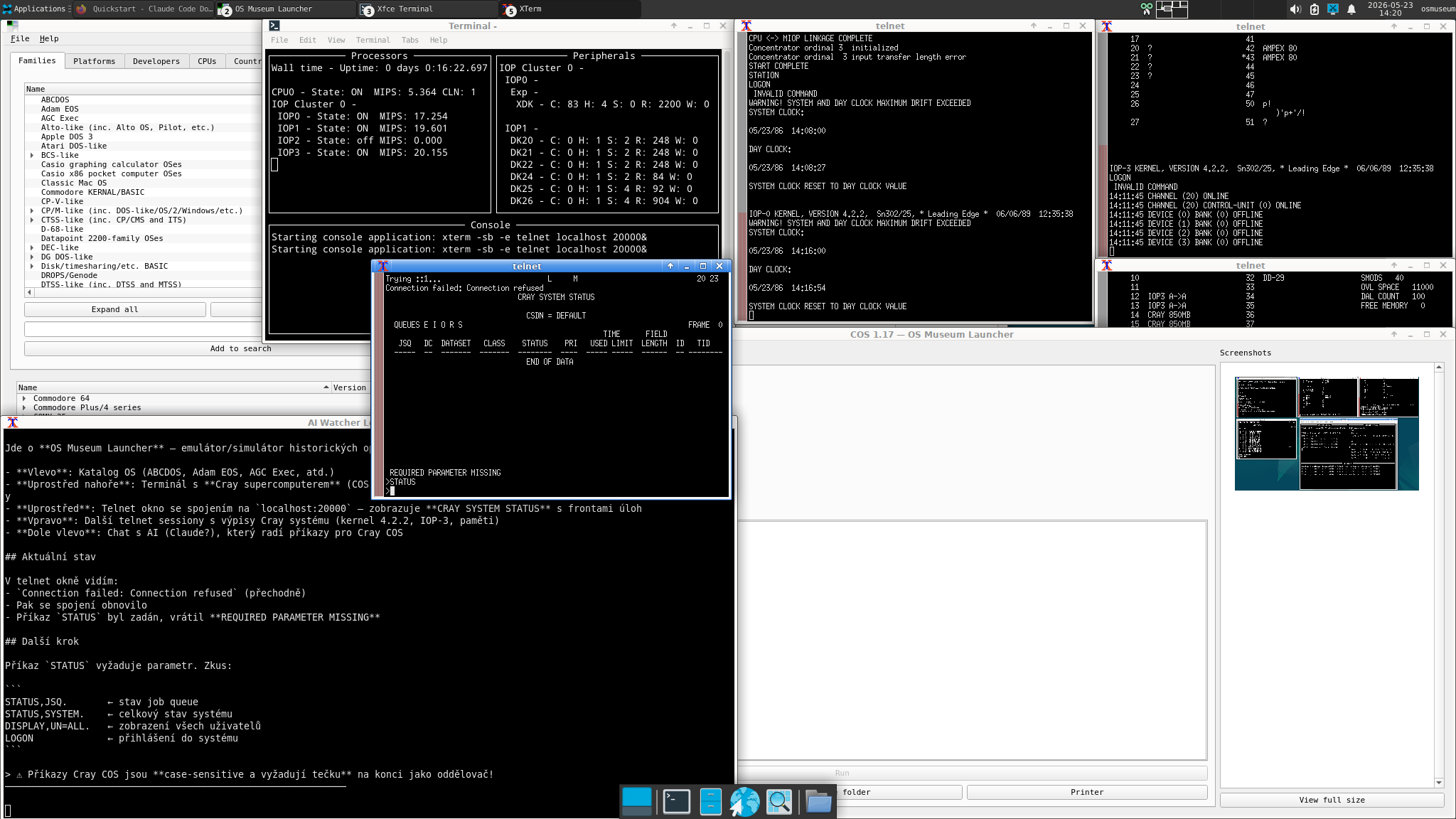
What’s in that screenshot is the moment where both tools matter. COS (Cray Operating System) is shown here, running multiple terminals. Some show prompts you’d recognise, some not. OS museum launcher in left upper corner is the museum offering more exhibits. The xterm in the bottom-right is AI Watcher’s log — silent right now, ready to fill with explanation the moment a shortcut is pressed.
How it actually works
Four shortcuts cover the workflow:
| Shortcut | Action |
|---|---|
Super+A |
Window screenshot, default question (“what is this, what should I do next?”) |
Super+Shift+A |
Whole desktop, default question |
Super+Q |
Window screenshot, then a dialog asking for your own question |
Super+Shift+Q |
Whole desktop, custom question |
Super+A is the bread and butter. You see something — a cryptic prompt, an error you don’t understand, a menu in a language nobody speaks any more. You press the key. Claude looks at the screenshot, identifies the system from visual cues and the window title, and writes three or four sentences: what you’re looking at, what the next reasonable action is, what to watch out for. The answer arrives in the log window in two to four seconds.
Super+Q is for when you have a specific question. “Why does every command come back with ??” — Claude answers in context of the specific system on screen, which is usually different from any generic web search you’d type the same question into.
Where it shines, where it falls short
For systems with surviving documentation in Claude’s training data — early UNIX variants, DOS, OS/2, classic Mac OS, BeOS, the well-known mainframe environments — the assistance is comparable to a competent engineer who’s never used the system but read the manual. Which is to say: very useful.
For systems with thin documentation — niche Smalltalks, research-lab Lisp machines, Oberon and its descendants — the answers get worse, and sometimes Claude confidently invents details. Asking “are you certain?” helps, as does keeping verification in mind. The combination of “AI says this” and “the system actually behaves like this” is the only thing that survives.
For systems that are essentially folklore — undocumented research one-offs, certain Soviet-era mainframes, BeOS deeper internals — Claude tends to admit it doesn’t know, which is the most useful behaviour of all. The honest I don’t know response happens more often than people expect from these tools, and that’s where trust comes from.
The win isn’t omniscience. The win is that the museum becomes navigable — exhibits that would otherwise sit untouched because no one wants to read three textbooks to operate them become approachable, one shortcut at a time.
Together
- Virtual OS Museum makes historical systems available.
- AI Watcher makes them approachable.
Neither tool replaces the manuals, the archives, or the original literature — and neither tries to. They just remove the two specific barriers that keep most curious people from ever experiencing what the history of computing actually felt like to use.
The result is a museum you can walk through alone.
Get started
- Download Virtual OS Museum from virtualosmuseum.org and run it in a hypervisor — VirtualBox / QEMU.
- Install AI Watcher inside that VM environment:
git clone https://github.com/ruzaq/ai-watcher && cd ai-watcher && ./install.shThen drop your Anthropic API key into~/.config/ai-watcher/env— get one here. - Pick a system and start exploring. Press
Super+Awhenever something surprises you.
Good first stops — all included in the museum, all well-documented enough for Claude to be a useful guide:
- CTSS — the original time-sharing system from MIT, 1961, where a lot of modern computing was first sketched out
- TOPS-20 — DEC’s PDP-10 operating system, beloved by 1970s hackers, the ancestor of much UNIX culture
- OS/2 — IBM’s deeply engineered PC OS, full of corners worth knowing
- BeOS — the cult multimedia OS that briefly looked like it might be the next Mac OS
- Classic Mac OS — the GUI that taught the personal computer how to behave
- IRIX — SGI’s UNIX, where 1990s 3D graphics happened
The history of computing is bigger than most people realise. Most of it is locked behind setup pain and undocumented prompts. Two small tools, working together, unlock more of it than either could alone — and the only thing standing between you and a 1965 mainframe is a git clone and a keyboard shortcut.